ASUS PG32UCDMR QD-OLED - Windows calibration tool issue - peak brightness incorrect

Soldato
Joined
28 Feb 2004
Posts
6,043
Location
North East, UK
Hi,

I got this monitor delivered today to run as my primary monitor alongside my asus pg32ucdm (this will be used for my sim rig).

the pg32ucdmr I received today will not show the correct nit value in the the windows tool, where as my UCDM does (clips at 1000 nits). The UCDMR is clipping at round 500 nits.


The panel is exactly the same the only difference is the UCDRMR is running via display port 2.1 where as the UCDM is HDMI 2.1.

I have also reinstalled the windows driver for the new screen to no avail (correct driver from the ASUS website for the UCDMR).

Monitor on latest firmware and also in gaming mode (not true black 400)

I have tried a fresh nvidia diver install using DDU and unplugged the UCDM just to ensure this isn't causing any issues, however the windows HDR tool is still capping out at around 500 nits on the UCDMR. I have idtendical OSD settings on both screens as well (the only difference with the UCDMR is DP 2.1 and a sensor upgrade).

Any ideas what is causing this issue on the new screen?

Thanks in advance!
 
Last edited:

Not to confuse things even further; but neither screen are showing the “correct” number here.

The two tests shown in the tool are for 10% APL and then 100% APL, and the old screen isn’t reaching 1000 nits really for either of those. And certainly not for both.

The figures shown in the tool are pulled from the monitor EDID info, and are pretty irrelevant in this instance. They’re there to make using the slider easier, but it’s the visual guidance you should be following. Ignore the numbers reported other than to help you set the same value for both tests. When it shows a lower value than you expect (based on the peak brightness spec), it doesn’t actually cap or limit your brightness, you don’t need to worry about that.

Having said all that, there’s very few games which actually even use the config from the tool, instead having their own in built config tool instead. So using it may be irrelevant in many (most?) situations anyway.
 
Not to confuse things even further; but neither screen are showing the “correct” number here.

The two tests shown in the tool are for 10% APL and then 100% APL, and the old screen isn’t reaching 1000 nits really for either of those. And certainly not for both.

The figures shown in the tool are pulled from the monitor EDID info, and are pretty irrelevant in this instance. They’re there to make using the slider easier, but it’s the visual guidance you should be following. Ignore the numbers reported other than to help you set the same value for both tests. When it shows a lower value than you expect (based on the peak brightness spec), it doesn’t actually cap or limit your brightness, you don’t need to worry about that.

Having said all that, there’s very few games which actually even use the config from the tool, instead having their own in built config tool instead. So using it may be irrelevant in many (most?) situations anyway.
Thanks mate, I just think it's strange that they are the same panel but the older one the image disappears at 1000 nits but the newer model caps out at 500 nits.

Aside from that the newer model seems to have developed some really strange lines (almost like scan lines) so I've asked for a replacement which is coming Saturday.
 
Last edited:
Thanks mate, I just think it's strange that they are the same panel but the older one the image disappears at 1000 nits but the newer model caps out at 500 nits.

Aside from that the newer model seems to have developed some really strange lines (almost like scan lines) so I've asked for a replacement which is coming Saturday.
It will be purely down to the EDID configuration and the figures the screen reports to the tool, but yes I agree it’s odd they don’t have the same data.
 
Merry Christmas!

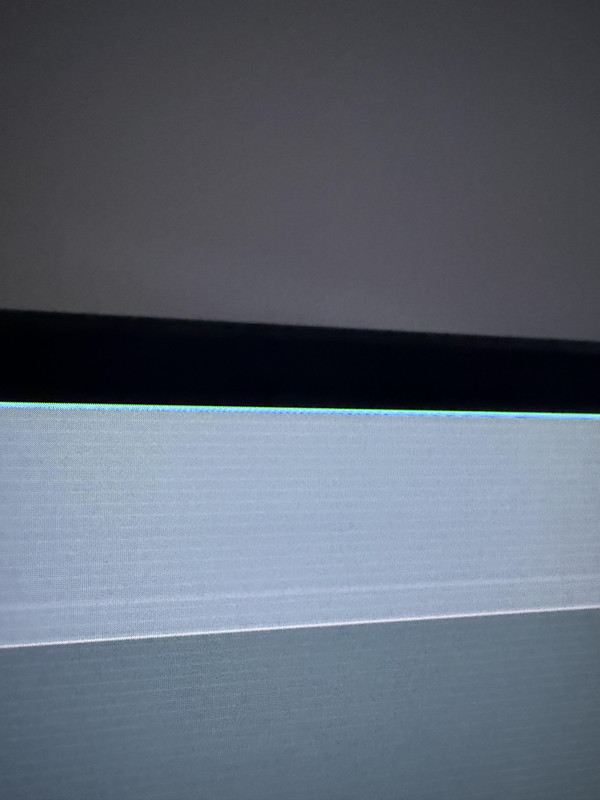
This is the issue I have with these lines on the screen (I also have a PG32UCDM which I moved to my sim rig and do not show this issue!) - managed to get a good picture on the steam app - guessing it's faulty?

I've tried it on our PS5 Pro as well and we still get these vertical lines down the screen, reset the the screen / unplugged it to no avail. They run perfectly aligned down the whole panel.

nw3h70ltdb9g1.jpg
 
Have you tried different video connections to see if it’s the same on all? Otherwise may need an RMA sadly
Yeah mate tried HDMI connections, tried it using my PS5 pro and different cables still the same, I've got a replacement coming Saturday. Will report back once it's arrived! The bezel also has a paint flaw so hoping it's just a dodgy one I've been sent, I have to say image quality via DP 2.1 is definitely noticeable over HDMI 2.1 I could tell straight away how clean the image looks.
 
Have you tried different video connections to see if it’s the same on all? Otherwise may need an RMA sadly
New monitor set up and updated today, seems absolutely perfect no strange lines.

Quick question - when using Display port 2.1 with my 5090 should DSC be on or off on the monitor? I would assume off so it's running at the full bandwidth? :)
 
New monitor set up and updated today, seems absolutely perfect no strange lines.

Quick question - when using Display port 2.1 with my 5090 should DSC be on or off on the monitor? I would assume off so it's running at the full bandwidth? :)
Either will work fine. The idea of having it end to end is that it can power the spec without DSC so for the sake of that, I’d turn it off. Make sure you’ve got a good DP 2.1 cable though for that
 
Either will work fine. The idea of having it end to end is that it can power the spec without DSC so for the sake of that, I’d turn it off. Make sure you’ve got a good DP 2.1 cable though for that
Cheers I'm using the one that ASUS supplied which is rated for 80Gbps.
 
Back
Top Bottom