All settings reset to default values message when booting

Associate
Joined
11 Jan 2026
Posts
9
Location
Cornwall
Hey guys,

Just got myself a new prebuilt after being out of the PC scene for about 12 years. It's all going well except I can't seen to get my BIOS to hold my RAM overclock settings, even just XMP. My bios just reverts to default values after I turn it off overnight and start it again the next day I just keep getting a black screen showing my specs and a message on boot 'All settings reset to default values' then it restarts.

My specs are:
CPU: Intel Core Ultra 9 285K
Motherboard: MSI Z890 GAMING PLUS WIFI
RAM: Kingston FURY Beast Black RGB 16GB (2x8GB) 5200MT/s DDR5

EDIT: seen similar things online about it possible being a dead CMOS battery, is that likely considering it's a new build?
 
Last edited:

It's all going well except I can't seen to get my BIOS to hold my RAM overclock settings, even just XMP. My bios just reverts to default values after I turn it off overnight and start it again the next day I just keep getting a black screen showing my specs and a message on boot 'All settings reset to default values' then it restarts.
Are you literally only changing XMP? What speed are your sticks supposed to run at? I note you say 5200 in the description, but that could be a default?

I assume they have been placed in the correct slots (usually 2 and 4)?

EDIT: seen similar things online about it possible being a dead CMOS battery, is that likely considering it's a new build?
Unlikely, but possible.

My bios just reverts to default values after I turn it off overnight
How are you turning it off exactly?

Do you have fast boot enabled in Windows?
 
Are you literally only changing XMP? What speed are your sticks supposed to run at? I note you say 5200 in the description, but that could be a default?

I assume they have been placed in the correct slots (usually 2 and 4)?
XMP and turning on 200s boost, the Ram defaults to 4800M/T so it's a pretty small overclock, the RAM is in the correct slots running dual channel.

Unlikely, but possible.


How are you turning it off exactly?

Do you have fast boot enabled in Windows?
I turn it off by shutting down windows then at the plug, yes I have fast boost enabled.
 
Last edited:
Thanks, noob question but how do I check that?

You need to check the motherboard manual. Something else: some motherboards have a Clear CMOS button on the rear IO panel so it might be worth checking that to make sure it isn’t stuck or something.
 
You need to check the motherboard manual. Something else: some motherboards have a Clear CMOS button on the rear IO panel so it might be worth checking that to make sure it isn’t stuck or something.
So are jumpers just little plastic covers on the pins? I found an image of it a manual online but I don't know how to upload pics here.

What happens if you do not turn on 200S boost?
When I first got the PC I think I just had XMP enabled but not 200s boost and it did the same thing, can't remember for sure though, I'll turn my PC off tonight and report back tomorrow if it still resets.
 
So are jumpers just little plastic covers on the pins? I found an image of it a manual online but I don't know how to upload pics here.

Yes. Check page 47 of your motherboard manual and look for the JBAT1 jumper on the lower edge of the motherboard. If it has a jumper across the pins remove the jumper.
 
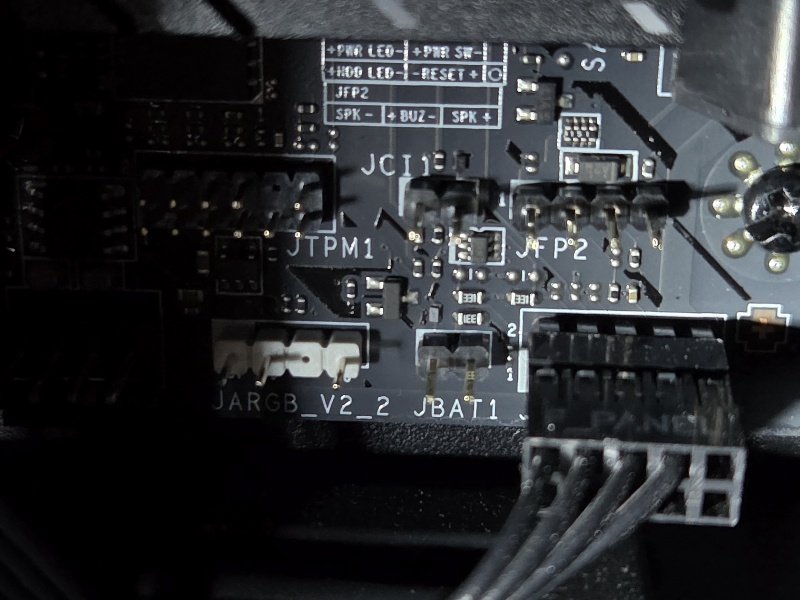
So I restarted today with just an XMP OC and it did it's reset to default thing again, I opened the case and found these pins with plastic on them, just to double check I need to take the jumpers off these pins right?

download.jpg
 
Last edited:
The pic is a bit blurry...
The motherboard manual will tell you what pins are what, you should be able to download the manual from the motherboards website if you don't have the booklet handy.
 
I opened the case and found these pins with plastic on them, just to double check I need to take the jumpers off these pins right?

The one that interests you is JBAT1 which is not jumpered which is correct. To the right you have the front panel connectors which you should check match the case and are correct: not all motherboards follow the same wiring.

It will help you to put a speaker on JFP2 so you can hear any BIOS beep codes. OCUK don't sell them so you want one of these.
 
So I restarted today with just an XMP OC and it did it's reset to default thing again, I opened the case and found these pins with plastic on them, just to double check I need to take the jumpers off these pins right?
JBAT1 is the clear cmos I think, which has no cap, so looks like there's nothing to do there.
 
The one that interests you is JBAT1 which is not jumpered which is correct. To the right you have the front panel connectors which you should check match the case and are correct: not all motherboards follow the same wiring.

It will help you to put a speaker on JFP2 so you can hear any BIOS beep codes. OCUK don't sell them so you want one of these.
JBAT1 is the clear cmos I think, which has no cap, so looks like there's nothing to do there.
Ok thanks, I thought the small black things were the jumper, I almost tried to pull them out out, glad I didn't lol.

So is this likely a CMOS battery issue?
 
as @Quartz said, it's unlikely to be related to the cmos (cr2032) battery as this board is too new for the battery to be dead, unless it was a dud to begin with.
you could try changing the bios battery in the first instance but i would suspect that this is unlikely to cure your predicament...but it's cheap and easy and on the off chance that it does...saves a lot of hassle

personally in my experience, i would suspect that this is either: (a) an unstable overclock, or (b) the motherboard has a bad BIOS ROM

for (a): you could test it out with a RAM clock slower than the XMP settings to see if it sticks

for (b): if this board is new and within warranty period i would be going back to the etailer for an RMA pronto
if it is indeed a bad BIOS ROM then flashing a new BIOS into a dodgy ROM might be the straw that breaks the camel's back, and wreck the whole board. if this happens then the RMA is likely to be rejected as they could argue user error
 
Last edited:
I will leave this video just in case your motherboard has a CMOS battery "Safety Clip" that MSI have started using.


EDIT

Although, seeing as it is a brand new prebuilt PC i would contact the retailer first (OCUK?).

Removing the safety clip may invalidate your warranty.
 
Last edited:
as @Quartz said, it's unlikely to be related to the cmos (cr2032) battery as this board is too new for the battery to be dead, unless it was a dud to begin with.
you could try changing the bios battery in the first instance but i would suspect that this is unlikely to cure your predicament...but it's cheap and easy and on the off chance that it does...saves a lot of hassle

personally in my experience, i would suspect that this is either: (a) an unstable overclock, or (b) the motherboard has a bad BIOS ROM

for (a): you could test it out with a RAM clock slower than the XMP settings to see if it sticks

for (b): if this board is new and within warranty period i would be going back to the etailer for an RMA pronto
if it is indeed a bad BIOS ROM then flashing a new BIOS into a dodgy ROM might be the straw that breaks the camel's back, and wreck the whole board. if this happens then the RMA is likely to be rejected as they could argue user error
Thanks, my stock clocks are 4800mhz and xmp is 5200mhz so not exactly a huge overclock. I could maybe try updating the bios, supposedly the latest one has better memory support.
 
Back
Top Bottom