Associate
- Joined
- 1 Apr 2010
- Posts
- 2,146
- Location
- South Shields
Right, just compiled all my work for my Uni course into one file so everything can have the correct Page Number as well as being in the Contents.
I broke up pages to make them Landscape rather than Portrait so i could add some more images for the work.
Completed, saved and then went to add Page Numbers, sorted......but is it.
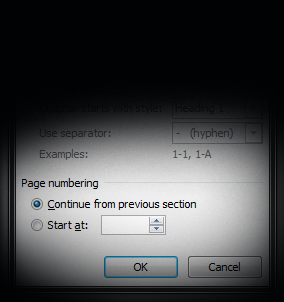
Looked through my work only to see where i broke the pages up, each landscape page starts at the number 1 - Displayed Page number as: Page 1 of 20.
Starting to get on my wick as i cant seem to find a way to link each page together without losing the breaks, is there anything possible that i am missing? tearing my hair out here!
Any advice would be great.
Cheers in advance.
I broke up pages to make them Landscape rather than Portrait so i could add some more images for the work.
Completed, saved and then went to add Page Numbers, sorted......but is it.
Looked through my work only to see where i broke the pages up, each landscape page starts at the number 1 - Displayed Page number as: Page 1 of 20.
Starting to get on my wick as i cant seem to find a way to link each page together without losing the breaks, is there anything possible that i am missing? tearing my hair out here!
Any advice would be great.
Cheers in advance.


 .
.