

You are using an out of date browser. It may not display this or other websites correctly.
You should upgrade or use an alternative browser.
You should upgrade or use an alternative browser.
Overclocking for an oldie
- Thread starter psd99
- Start date
More options
Thread starter's posts
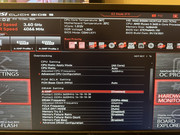
Oh and when I changed ddr4 to 4066
Windows did not like me and crashed before even being able to login
I think ddr4 is set to auto and that seems to work for a long time
It is set to auto right now
My system is stable its just the ram I need more ram or for the ram to be quicker than it has been
Windows did not like me and crashed before even being able to login
I think ddr4 is set to auto and that seems to work for a long time
It is set to auto right now
My system is stable its just the ram I need more ram or for the ram to be quicker than it has been
Last edited:

Soldato
- Joined
- 14 Aug 2018
- Posts
- 3,917
Your DDR4 is rated at 3600 so you've got no chance of running it at 4000Mhz+ at stock voltage.
You can tune your DDR4 and tighten the timings and maybe boost the clock speed but that is normally a very time consuming endeavour so unless you want to go down that road I would just enable A-XMP (which you have disabled from your screenshot) and call it a day.
The "auto" RAM setting will probably run the RAM at it's lowest default speed (i.e. 2133Mhz) so you're losing a fair bit of performance by not enabling A-XMP.
You can tune your DDR4 and tighten the timings and maybe boost the clock speed but that is normally a very time consuming endeavour so unless you want to go down that road I would just enable A-XMP (which you have disabled from your screenshot) and call it a day.
The "auto" RAM setting will probably run the RAM at it's lowest default speed (i.e. 2133Mhz) so you're losing a fair bit of performance by not enabling A-XMP.

overclocking like back in the day doesn't really exist any more for the vast majorityWhere do I even begin to overclock? Lol anything quick and easy for a novice
just turn on xmp and be done lol
nowadays to extract the best performance with the least amount of work is actually to undervolt the cpu so that it can boost harder for longer
(though curve optimiser is not available for ryzen 3000 series so you're SOL there)

Associate
- Joined
- 19 Jan 2007
- Posts
- 2,077
- Location
- Up a Tree
Update your bios, then the best processor for the best price would be a 5700X3D especially if you play games.Ok thanks pretty much just the one setting then to enable a-xmp
What is the next best processor to upgrade to out of interest?
Last edited:
yes, you'd need a bios update to support the latest processors, your bios build is from 2021will updating the bios make any difference?
...this is especially important if you are seriously considering a cpu upgrade. said 5700x3d will not run on your current bios
also, later bios updates have security updates

It's usually download the latest BIOS and extract to an empty USB drive, ensure the drive is in the correct socket on the back panel (I usually put the drive there and extract to it in place rather than moving it around); the correct position should be in the manual. Reboot the PC in to BIOS and then run update from within BIOS.ah ok gotcha - what is the easiest way to upgrade the bios?
There will be a section in the manual.
Yes, that marking just tells you that is the only USB source the BIOS will look at during the update process. I have an extension lead on mine to make access for updates easy & day to day the printer is attached to it.ah thanks
yes I will double check
and I noticed the word BIOS on the back of the chassis
does that USB slot actually work on the OS too?
that is cleverYes, that marking just tells you that is the only USB source the BIOS will look at during the update process. I have an extension lead on mine to make access for updates easy & day to day the printer is attached to it.
prob one of those 'to do things' I have a huge list
first thing is to clean out the PC using compressed air, tidy up the cabling and looking to upgrade my 3x ARGB fans
exciting times
You only need to use the specific usb port if your using bios flashback, if your doing it from bios you can use anyone.ensure the drive is in the correct socket on the back panel (I usually put the drive there and extract to it in place rather than moving it around); the correct position should be in the manual. Reboot the PC in to BIOS and then run update from within BIOS.

And yes it was butt clenching indeed
Wow new bios looks great and cleaner
But it looks like it wiped all of my settings
Took me a while to sort it
Now i have a profile enabled xamp profile 1
Is that all for the overclock?!
Meh dissapointing
I remember overclocking my cpu in 2008
By editing the fsb!
Wow new bios looks great and cleaner
But it looks like it wiped all of my settings
Took me a while to sort it
Now i have a profile enabled xamp profile 1
Is that all for the overclock?!
Meh dissapointing
I remember overclocking my cpu in 2008
By editing the fsb!
yeah, not really much to do nowadaysNow i have a profile enabled xamp profile 1
Is that all for the overclock?!
you can get some (minimal) gains, but not worth the time nor effort
just let the boosting algorithm do the work
gone are the days of the celeron 300a/q6600/2500k monster overclocksMeh dissapointing
I remember overclocking my cpu in 2008
By editing the fsb!