

You are using an out of date browser. It may not display this or other websites correctly.
You should upgrade or use an alternative browser.
You should upgrade or use an alternative browser.
possible watercooling issue
- Thread starter Bevii3
- Start date
More options
Thread starter's posts


Soldato
- Joined
- 6 Jan 2013
- Posts
- 22,524
- Location
- Rollergirl
Corsair what? Is it H100i?
High try reading your instructions it may tell you what you need to know.
Its possible it may be due to the rise in temps, was it showing a white LED before this hot spell where having just a thought?
Did a quick google and its to do with water temperature.
The Corsair link software for LED control for liquid temperature (WHITE (25C) - ORANGE (40C) - RED (50C))
Soldato
- Joined
- 6 Jan 2013
- Posts
- 22,524
- Location
- Rollergirl
Thanks for the replies, its the h80i i forgot to add, all temps were showing 29C-30C, i accidentally pressed a button with an R on it a while ago when switching the pc on, could it have been that?
It'll be linked to temperature. Open the Corsair software and have a look at the settings for the led.
Soldato
- Joined
- 6 Jan 2013
- Posts
- 22,524
- Location
- Rollergirl
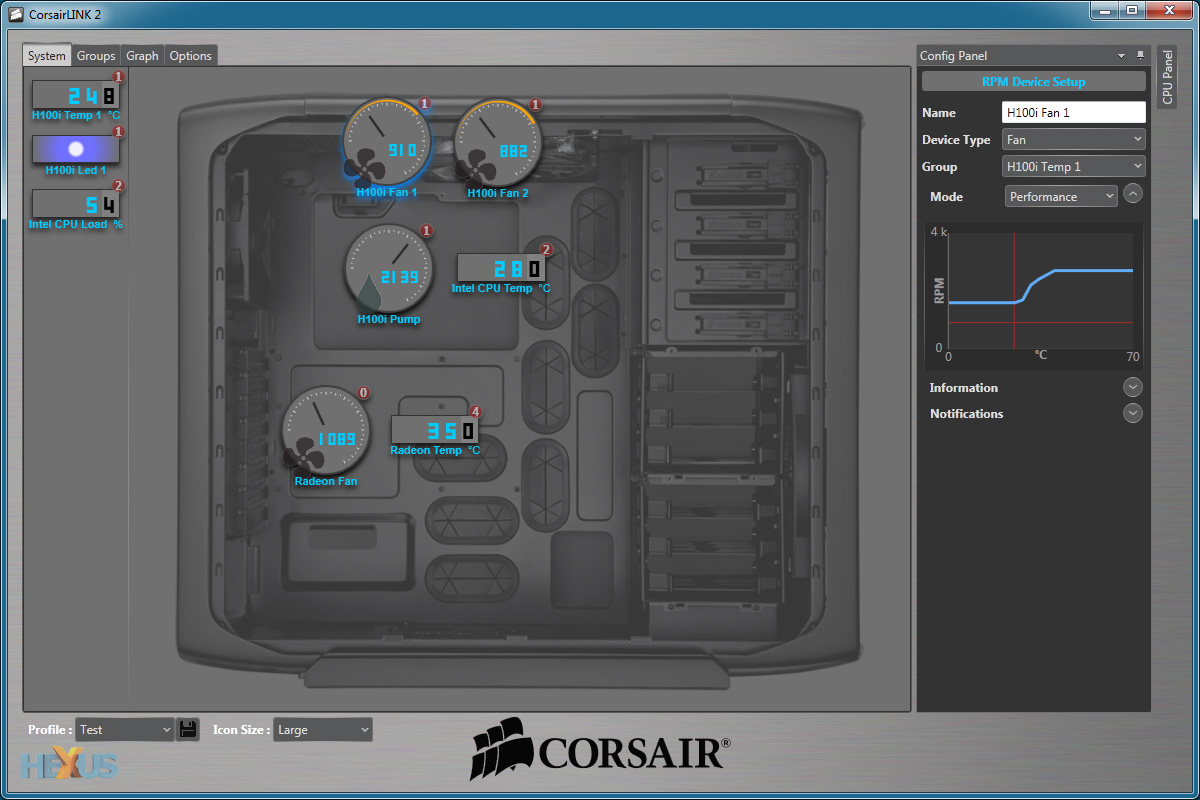
I had a H100i, and with the Corsair Link software I could change the LED colour or have it change automatically according to coolant temperature, the latter sounds like your set-up. Could you post screen shots of your software opened?
not sure if your allowed links but its just to the screenshot, http://gyazo.com/966f49dcce4968afee2858638c6ebbe3
Soldato
- Joined
- 6 Jan 2013
- Posts
- 22,524
- Location
- Rollergirl
not sure if your allowed links but its just to the screenshot, http://gyazo.com/966f49dcce4968afee2858638c6ebbe3
Left of the screen here, LED settings. Don't you have that for your single LED?
Soldato
- Joined
- 6 Jan 2013
- Posts
- 22,524
- Location
- Rollergirl
It must be a different set-up than a H100i. Sorry I can't help any further.
Thanks for your help anyway, i found a fix luckily and it involved editing the registry, this was the fix. So navigate to this path in Registry Editor: HKEY_LOCAL_MACHINE\SYSTEM\CurrentControlSet\Enum\USB\VID_1B1C&PID_0C04
You should find one or possibly more folders of random numbers, letters, and ampersands. Under each of these folders will be a "Device Parameters" folder which has the following four important strings:
AllowIdleIrpInD3 = 1
DeviceSelectiveSuspended = 1
EnhancedPowerManagementEnabled = 1
SelectiveSuspendEnabled = 1
Just double click these individually in the far right pane and a window will pop up with the value already highlighted. Change each to "0" (zero) then save and reboot.
To revert these changes, just change the values back to 1.
Thanks all for the replies
You should find one or possibly more folders of random numbers, letters, and ampersands. Under each of these folders will be a "Device Parameters" folder which has the following four important strings:
AllowIdleIrpInD3 = 1
DeviceSelectiveSuspended = 1
EnhancedPowerManagementEnabled = 1
SelectiveSuspendEnabled = 1
Just double click these individually in the far right pane and a window will pop up with the value already highlighted. Change each to "0" (zero) then save and reboot.
To revert these changes, just change the values back to 1.
Thanks all for the replies