


Nvme drives not showing in boot priority in BIOS

Associate
Joined
7 May 2012
Posts
536
Location
Bournemouth
Trying to install Windows 11 onto my newly upgraded system. I booted from a USB flash drive I downloaded Windows 11 onto, I selected the partition I wanted to install it on and after it reached 100% the system rebooted.
Except it didn't, it just went into a boot loop.
So I removed the flash drive and instead of booting up into Windows, it now enters the BIOS.
Now the boot priority list is empty, but my two nvme drives are showing under storage information, as per the below screenshot
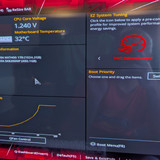


I installed Windows 10 on this system only last week and didn't have this issue then so I'm a bit stumped.

If I select Boot Menu, I get a message saying "The system cannot find any bootable devices".

Previously, both my nvme drives showed in the boot priority list.

Edit: Sorry, forgot the system info:
Asus ROG STRIX B850-G Mobo
Ryzen 7 9850X3D CPU
1TB Biwin NV7400 Gen 4 M.2
480GB ADATA SX8200NP Gen 3 M.2
Sapphire Nitro+ 9070XT GPU
 
Last edited:

Welp, just made it worse...

Enabled CSM and selected UEFI for hard drives and now the system doesn't boot up, with the orange, storage LED error on
 
Oh hold on... After about a minute of being in limbo with the storage LED on, the system rebooted and invited me to go back into the BIOS after failing to POST.
Now I see both my SSDs in the boot list...
I'm pretty confused :cry: :km:
 
Do you know where I find that setting in the BIOS?
not on an asus mobo, sorry :(

google says this: To enable Secure Boot on an ASUS motherboard, enter BIOS (press Delete or F2 at boot), press F7 for Advanced Mode, go to the Boot > Secure Boot menu, and set the "OS Type" to Windows UEFI Mode. Ensure CSM is disabled and save changes using F10
 
I'd start with a bios reset and see if it discovers the bootloader on one of the drivers.
Would this be done by clearing the CMOS?
When I launched the Windows 11 installer the first time, there were a few partitions, some hundreds of MB, 1 of them 1tb, and a bunch in between.
I deleted a few... Have I done ***** up?:confused:
 
Would this be done by clearing the CMOS?
When I launched the Windows 11 installer the first time, there were a few partitions, some hundreds of MB, 1 of them 1tb, and a bunch in between.
I deleted a few... Have I done ***** up?:confused:
Depends what was on the partitions - if youre not fussed about keeping any of it. Were you using the drive before?

Re clearing CMOS, there's usually an option to reset all settings in the bios menu. Just make sure you enable CSM, TPM2 and UFEI before installing Windows.
 
Depends what was on the partitions - if youre not fussed about keeping any of it. Were you using the drive before?

Re clearing CMOS, there's usually an option to reset all settings in the bios menu. Just make sure you enable CSM, TPM2 and UFEI before installing Windows.
No I'm wiping the system.
Was just worried that the partitions were there for a technical reason.
Thanks, will try that if the next attempt fails
 
If you are going to do a OS re install make sure you have just the drive you want the OS on installed.

This will stop Windows installing stuff on other drives and then failing to boot if you remove the drive etc.
Sorry, not sure I follow? Do you mean physically installed?
 
Sorry, not sure I follow? Do you mean physically installed?
Yes, Windows has a habit of installing part of the boot loader on other drives and then when they are removed Windows fails to boot.

Removing all drives (or disabling the ports so the OS does not see them, not tried this 1 though) and only having the 1 you want the OS on forces windows to install it on the same drive as there is no others.

Was easier to do with HDDs\SSDs as these had power cables or sata cables you could disconnect. With NVME Drives its either disable the port or remove the drive as there is no cables.
 
Last edited:
Yes, Windows has a habit of installing part of the boot loader on other drives and then when they are removed Windows fails to boot.

Removing all drives (or disabling the ports so the OS does not see them, not tried this 1 though) and only having the 1 you want the OS on forces windows to install it on the same drive as there is no others.

Was easier to do with HDDs\SSDs as these had power cables or sata cables you could disconnect. With NVME Drives its either disable the port or remove the drive as there is no cables.
I would really prefer to avoid doing this. My case is definitely not tool-less, I would have to remove a case fan and also potentially my Nitro+ 9070XT chunky boi GPU to get to the m.2 heatsink
 
So an update on this:
I flashed the BIOS to the latest firmware successfully.
Now I see all drives in the boot priority list in the BIOS, so my 2 nvmes and the bootable flash drive.
I booted from the flash drive and instead of selecting install, I select repair my PC.
I then select Startup Repair, and I'm presented with two 'installs' of Windows 11 to repair (??).
Whichever one I select to repair, Windows 11 installer runs a diagnosis and a few seconds later an error comes up saying
"Your device ran into a problem and couldn't be repaired.
Click or press Enter to see other recovery options.
Couldn't connect to network
Log file C:\Windows\System32\Logfiles\SRT\SrtTrail.txt"

Last week I tried to install Windows 10 on this system, and it couldn't connect to a network so I had to select a 'basic' install.

Is this issue being caused by a lack of network connection? If so then how can I resolve this? I've never had this issue before, I thought the Windows installer ran the system with basic drivers, including network driver. But for some reason it's not working with this motherboard.

PS; I'm pretty cheesed off. I spend the most on a motherboard I've ever spent and I'm faced with such a basic issue. Like I've installed Windows 10 on totally basic, cheapo motherboards before and they were able to connect to a network
 
Last edited:
Sorry your install is turning into a ball ache. There can be a lag between the windows installer having a driver for things like network cards and motherboards coming out. Going by the first BIOS release for your board it looks to be a year old so it's kind of hit and miss if Windows will have a driver or not. What you can do though is download the drivers for the Intel LAN and Realtek WiFi, extract the folders and copy them onto the same USB drive you're using for the Windows 11 install. Assuming you have another PC to do this on.

I know you can see the drives in the BIOS now but just to start from the beginning, clear the CMOS by holding in the button on the back of the motherboard next to the USB ports for 30 seconds or so. It looks like EZMode BIOS display doesn't show a lot of options so click F7 for Advanced mode. Go to the (usually) far right option for exit. There should be something like "load default values" or "load optimised defaults". Click to load that. As @adrichardson81 says under boot there should be secure boot / CSM and make sure secure boot has something like UEFI / Windows 11 mode selected. Your motherboard / devices should be new enough that you can leave CSM disabled and just enable UEFI windows boot mode but I'm not sure. My ASUS X670E Hero has CSM disabled (I think!) but I'm typing on this right now so can't immediately check. Save the BIOS and exit when you're done.

Copy the driver files from earlier onto the USB boot device with the Windows 11 installer on it. Go through the installer steps until you get to the select location to install Windows 11. I think you already said there's nothing on the disks you want to keep but again, just check to make sure that's correct before starting. Delete everything from the disk you want to install windows on. The cleared disk should now just say "unallocated space" and the amount should be the full size of the disk. Before you proceed you can click on the "load driver" option. Normally this is to load a sata / disk drivers but Windows doesn't care if you want to load other drivers at this point. On the driver screen browse to the folders on the USB stick where you unzipped the network drivers to and they should show up. Click on the LAN and WiFi drivers to install and Windows should do that for you.

Select the drive to install Windows on and continue with the install as usual. See if that works?
 
Sorry your install is turning into a ball ache. There can be a lag between the windows installer having a driver for things like network cards and motherboards coming out. Going by the first BIOS release for your board it looks to be a year old so it's kind of hit and miss if Windows will have a driver or not. What you can do though is download the drivers for the Intel LAN and Realtek WiFi, extract the folders and copy them onto the same USB drive you're using for the Windows 11 install. Assuming you have another PC to do this on.

I know you can see the drives in the BIOS now but just to start from the beginning, clear the CMOS by holding in the button on the back of the motherboard next to the USB ports for 30 seconds or so. It looks like EZMode BIOS display doesn't show a lot of options so click F7 for Advanced mode. Go to the (usually) far right option for exit. There should be something like "load default values" or "load optimised defaults". Click to load that. As @adrichardson81 says under boot there should be secure boot / CSM and make sure secure boot has something like UEFI / Windows 11 mode selected. Your motherboard / devices should be new enough that you can leave CSM disabled and just enable UEFI windows boot mode but I'm not sure. My ASUS X670E Hero has CSM disabled (I think!) but I'm typing on this right now so can't immediately check. Save the BIOS and exit when you're done.

Copy the driver files from earlier onto the USB boot device with the Windows 11 installer on it. Go through the installer steps until you get to the select location to install Windows 11. I think you already said there's nothing on the disks you want to keep but again, just check to make sure that's correct before starting. Delete everything from the disk you want to install windows on. The cleared disk should now just say "unallocated space" and the amount should be the full size of the disk. Before you proceed you can click on the "load driver" option. Normally this is to load a sata / disk drivers but Windows doesn't care if you want to load other drivers at this point. On the driver screen browse to the folders on the USB stick where you unzipped the network drivers to and they should show up. Click on the LAN and WiFi drivers to install and Windows should do that for you.

Select the drive to install Windows on and continue with the install as usual. See if that works?
I really appreciate the in-depth assistance here mate!
A ridiculously simple fix did the job:
I downloaded and copied the Rufus executable into the root of the flash drive.
In the Windows 11 installer
Shift+F10 to open the command prompt
Then "diskpart"
Then "list disk"
For some reason both my nvmes were showing as 0b free out of their respective capacities (?!)
Then I typed "Select Disk 1"
Then "clean"
Then same thing for Disk 2.
Then when I rebooted and got back into the installer, I opened the command prompt again and typed "OOBE\BYPASSNRO". This is so that I could install without needing network access.
I saw my two nvme drives to install Windows 11 onto and voilà! The installation proceeded, system rebooted and the installation process continued.

All up and running again! :D
 
Back
Top Bottom