OCZ Vertex 2e...Help

Associate
Joined
10 Jan 2008
Posts
1,677
Location
Nottinghamshire
Had my SDD running for a year now but I want to completely wipe it and get a fresh copy of windows on.

Well I've just put Windows 7 on a spare HDD so I can reconnect my SSD as a secondary drive to be able to use Toolbox to secure erase it.

All has gone well so far until I tried to secure erase it. I'm getting the following message:

Operation cannot be performed on a formatted drive. Please delete any partition on the drive then retry.

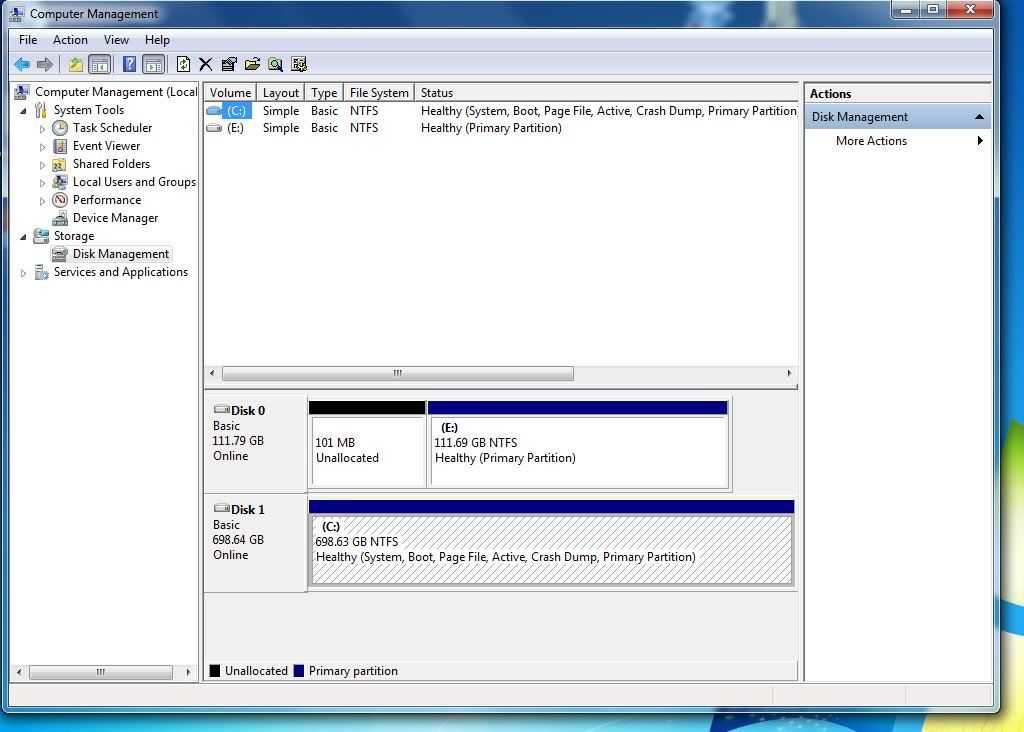
I can see there is infact a partition on it, system reserved D 77mb of 99mb. Is it safe to just delete the partition in windows using disk management and deleting volume D and then try to secure erase it?

RoEy
 
I can see there is infact a partition on it, system reserved D 77mb of 99mb. Is it safe to just delete the partition in windows using disk management and deleting volume D and then try to secure erase it?

That should be fine if you're going to completely erase the drive.

To be sure make sure the PC boots without the SSD connected.

When you install Windows again it'll put that partition back.
 
I'm still getting the same message.

Operation cannot be performed on a formatted drive. Please delete any partition on the drive then retry.

I deleted the system reserved parition but now it just says unallocated. Any ideas any one?
 
SSD.jpg
 
I assume the 111.79GB drive is the SSD.

Delete the "E" drive partition as well so the whole drive is unallocated.
 
Last edited:
Ok mate, did that and now I've got one step closer but its now saying:

Drive secure interface is frozen. Please power cycle the drive and restart toolbox to clear the condition.

I've unplugged the power to it and plugged it in again but still same message. Hope it's not had it :(
 
You are getting that message because your BIOS on your motherboard has locked it in that state to stop things like what you are doing from occurring, so...

Switch off the PC and then unplug the SSD drive. Then switch the PC on and after it has posted (gone through the BIOS screen etc) plug it back in so that Windows will see it but the BIOS no longer locks the drive.

That should work.

BTW - I avoided a lot of what you are doing by having HDD erase on a boot USB stick and just did it all from a DOS prompt, but I still used to get the frozen message, without unplugging the drive first.
 
Sorted now. I intalled RST instead of having windows native drivers on and unplugged it when in windows, replugged and BOSH! I'll keep this spare HDD with windows on so it will be much quicker next time :)

Thanks guys.

RoEy
 
Back
Top Bottom