re System Image

Associate
Joined
24 Jun 2025
Posts
23
Location
UK
Hello All,
I really didn't know where to post this so hopefully i've picked the right spot....
Just got a new laptop, migrating all my programs over before I move all my data across...
My question is, What is the best way to ( can I even do this? ) make an Image of just Win11 and also a separate Image of all the installed Programs in case SHTF and I have to start from scratch......

Your thoughts and guidance please

many Thanks

ben

 
How I would do it… clean install to get rid of any bloat then install all your programs and transfer over your user files (which you should have more than one backup of).

Then just take a system image (and have more than one backup of that also).

This works for me but other folk may have a different approach.
 
There is a number of ways to do it.

1. Use the software built in to Windows 11 (backup and restore).
2. Use 3rd party software like macrium Reflect (can still get the free version to use)

Get the OS with everything installed and setup the way you like it and then do a image of it.

backup\image it whenever you like or do a change you plan on keeping
 
I try and do something similar. Once I have the base install done and the essential device drivers installed/working I will then image it.

Then later on I'll take another image/backup if I'm considering a major update.

I have an old version of Acronis (perpetual license) and still works great for me. Have the old ISO image on a pen drive to let me do the base install before I then add any apps/games.
 
Awesome stuff.
Looks like I got a working setup of Macrium working so
Best type of media to keep the Image/s on ?
Obviously more than one kept ( plan on having a "house" NAS next year ) but.... in the mean time a good quality flash drive for portability, I travel a lot for work, and a decent HDD at home ??

Thnking you all for the suggestions/help so far :)
 
I've a handful of external HDDs. I've never felt the need (or more importantly been able to justify to the Mrs) for a NAS for my personal use. My Windows drives are fairly lightweight and I typically just install specific games I play.

But agree that it's a good idea to copy any images across multiple disks as you should expect a failure at some point.

I also have a 2.5 SSHD installed on my PC as well and typically will initially image onto that drive from my main NVME Windows drive.
 
I've a handful of external HDDs. I've never felt the need (or more importantly been able to justify to the Mrs) for a NAS for my personal use. My Windows drives are fairly lightweight and I typically just install specific games I play.

But agree that it's a good idea to copy any images across multiple disks as you should expect a failure at some point.

I also have a 2.5 SSHD installed on my PC as well and typically will initially image onto that drive from my main NVME Windows drive.
My laptop is my sanity whilst away at sea for weeks on end so.... it is all things to me, school/work/fun/3d printing/engineering/CAD/CNC/everything!
Along the way I have ended up with eleven! 1tB portable drives!! Mainly films/series/backup files/etc and the Sony tv doesn't like removable media that big which makes it a PITA when the missus wants to watch something on one of the drives...... hence a NAS.... IF! I set it up right I should be able to access it when I'm away at sea and the missus can watch stuff when I'm away, hopefully via a tv app.... Also could do with having the 3 laptops/PC's in the house backed up and the daughter being able to access college/uni work whilst away at uni.... and the wife's work stuff.... my god the list goes on.... :rolleyes:
Some of this stuff makes sense to me but until a week ago I hadn't even heard of Docker! It is a learning curve! Hence all the stupid questions! Sometimes th forum replies predict of level of knowledge...
 
Haha, think i've at least 6 external drives of varying ages (and levels of trust in them now). But if you have that much kit and family files/etc, maybe a NAS does make sense :)
 
Hello All,
I really didn't know where to post this so hopefully i've picked the right spot....
Just got a new laptop, migrating all my programs over before I move all my data across...
My question is, What is the best way to ( can I even do this? ) make an Image of just Win11 and also a separate Image of all the installed Programs in case SHTF and I have to start from scratch......

Your thoughts and guidance please

many Thanks

ben

If not too late, everything you need to create an image of the the NVMe, with all partitions is right there on the Windows setup USB.
Boot the USB, start a CMD window and backup the disk to a FFU image. I think I've posted the commands before. Let me know if you need them and I'll post them again.
 
Why you not using Macrium or something similar? Keep it simple!

Nothing wrong with the above method but added complexity for little value tbf.
 
Sorry for the delay, I've been trying to create the guide using a VM and ran in to two issues. The Windows 11 24H2 setup WinPE doesn't recognise the "Capture-FFU", I'm sure previous versions this. Secondly, the "Capture-FFU" command doesn't work on a virtual disk and I don't have a spare physical device to hand for a complete set of images.

First, you'll need to create a bootable WinPE USB, as shown in this guide. Or you can save some time and use the WinPE ISO I created using the same guide, which you can copy to a USB using Rufus.

1. Boot your computer using the WinPE USB. WinPE starts in a CMD window.
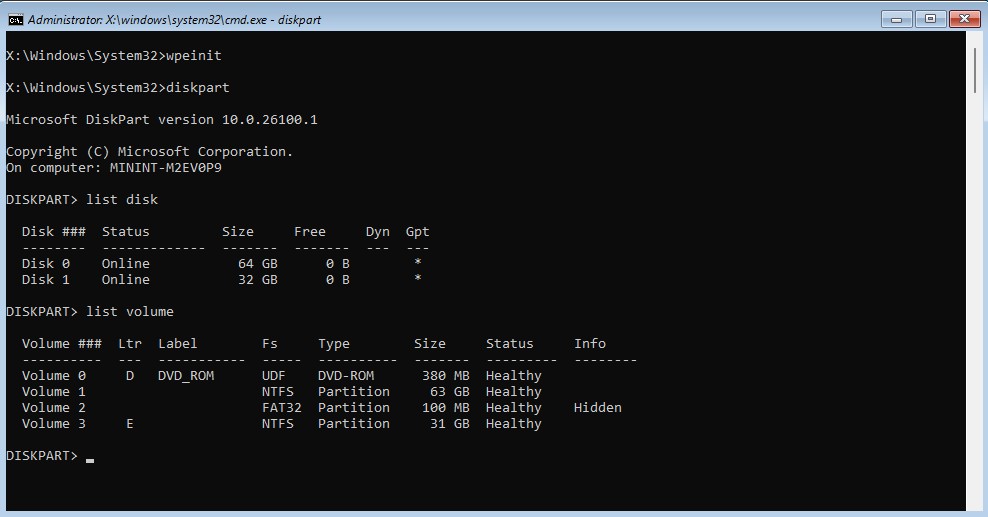
2. Before you start, run Diskpart to identify the volume labels, i.e. the drive letter of the disk to save the image to.
2.1. Type Diskpart
2.3. Type List Disk to confirm the disk you want to backup (OS Disk) is Disk 0
2.3. Type List Volume to confirm the drive letter (Ltr) of the backup disk, can be internal or external.

FFU-2.jpg


2.4. Type Exit to leave Diskpart

3. Enter the command below, replacing E: with the letter of the drive you're saving the image to if different
Code:
DISM /Capture-FFU /ImageFile=E:\NewLaptop.FFU /CaptureDrive=\\.\PhysicalDrive0 /Name:Disk0 /Description:"New Laptop Backup"

FFU-3.jpg


4. To restore the FFU image, enter the command, replacing E: with the letter of the drive the FFU image is saved on
Code:
DISM /Apply-FFU /ImageFile=E:\NewLaptop.FFU /ApplyDrive:\\.\PhysicalDrive0

More information on FFU images and some limitations. The most notable one is the FFU needs to be applied to a disk of the same size or larger. There is an optimze command to shrink the image when applying, but this doesn't seem reliable.
 
Last edited:
Back
Top Bottom