Some PS help please

Associate
Joined
21 Apr 2008
Posts
1,088
Location
By the river
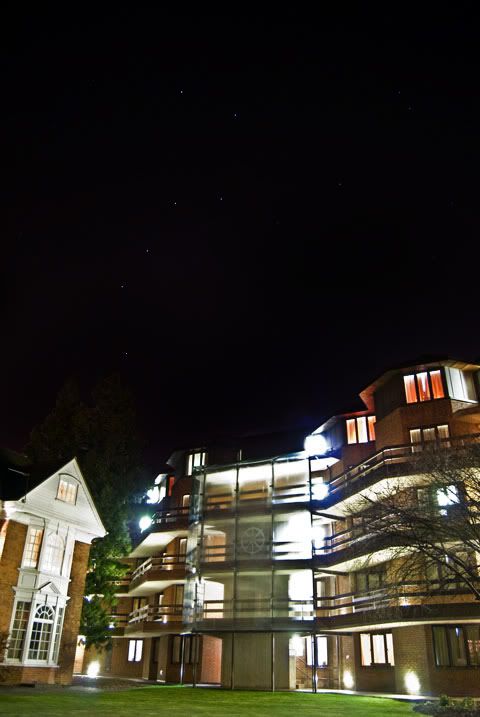
Did a long exposure of my current uni accomadation, with ursus major above.
Due to the ambient light, the original RAW is quiet orange, a quick tweak with my very limited PS skills and i've got the foreground back to roughly real colours (possibly a bit too daylight-y?), however the sky is now tinged purple, any suggestions on making more balanced? instructions would be good:p:D

thanks

chads%2Bmajor.jpg
 
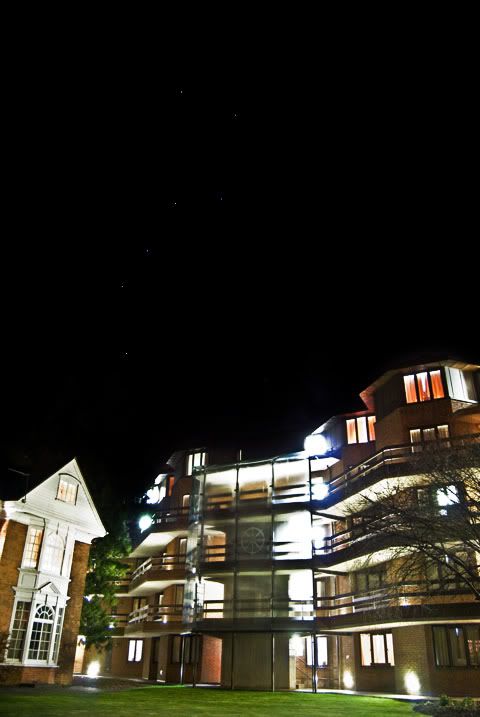
Quick Edit with level adjustment:

edit.jpg


Difficult to do too much with the low quality jpg but adjusting levels should help you out on the raw file.
 
Sorry, forgot about this.
When I edited it, I found that burning in the darkness was overly difficult. Trying to marquee the tree and around the roof with the magnetic lasso tool left me with a distinct purple line that look awful.
However i did do that, but used blend modes to mask out the crappyness.

I started by duplicating the layer, marqueed roughly around the roof andd tree, applying a few pixels of feathering. I then used the burn tool set to shadows to darken the purple, this left me with a half decent but unfinished look. I then set the layer to soft light, which blended the two photos.
Applying a layer mask and using a low opacity soft black brush on it will bring back any areas that dont look right.

Hope that makes sense.

Ps. I did it on a laptop, which having looked at it again, it think I could have made it darker.

Edit//. Ive just thought of a simpler method.
Duplicate the layer, go to adjustments replace colour. Select a section of purple, and adjust the brightness to 0, then adjust the fuzzyness to compensate for shades of purple. I put mine up fairly high. The as a finishing touch apply a layer mask over the layer and paint the layer mask with a soft black brush in the areas you want to restore.

chadsmajorco1py.jpg
 
Last edited:
Back
Top Bottom