


Intro
The latest version of Steel Series Engine 3 supports GT80/GE62 models. With superior gaming performance and intuitive interface can make your user experience more flexible. It is also the gear can back up all the files on the cloud and keep your software and hardware updated. We suggest users uninstall Keyboard LED Manager (KLM) before download SSE3. If you are Free-dos User can download SSE3 directly with the following link:
GE62:
http://www.msi.com/support/nb/GE62-2QF-Apache-Pro.html#down-utility&Win8.1 64
GT80:
http://www.msi.com/support/nb/GT80-2QE-Titan-SLI.html#down-utility&Win8.1 64
SSE3.0 Window – My Gear
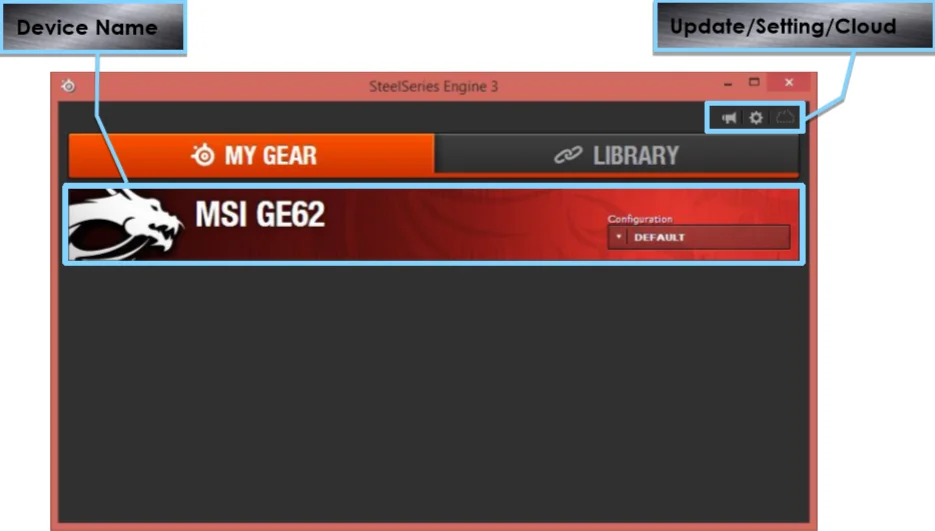
Device Name:
Read information from EC and distinguish the model.
This place will also show other SteelSeries devices which support SSE3.
Update:
Press Update will check if this is the newest version.
Setting:
User can change language from here. The System default will follow Windows system directly.
Click “About” will show current versions of software and firmware.
Cloud:
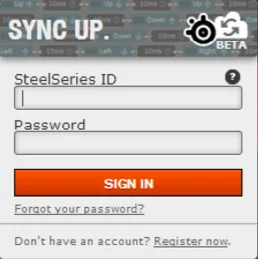
Log-in the SSE cloud system, in order to edit all of the SSE files.
SSE3.0 Window – Library
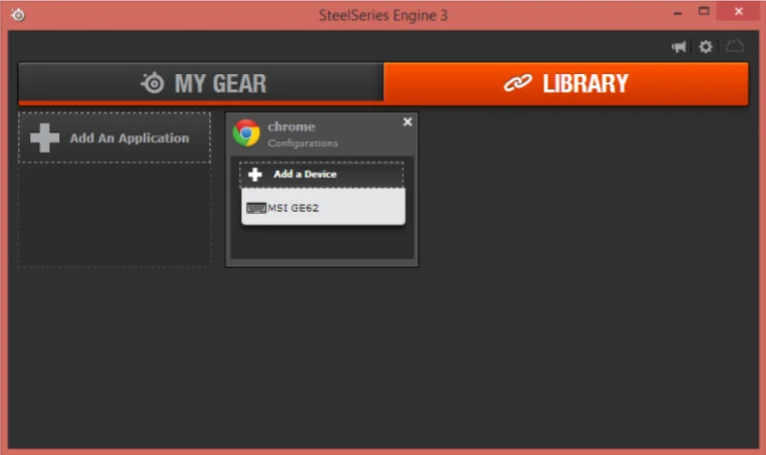
Click “Library” to choose different SSE Devices and configurations, in order to meet the needs of users.
Keyboard Window
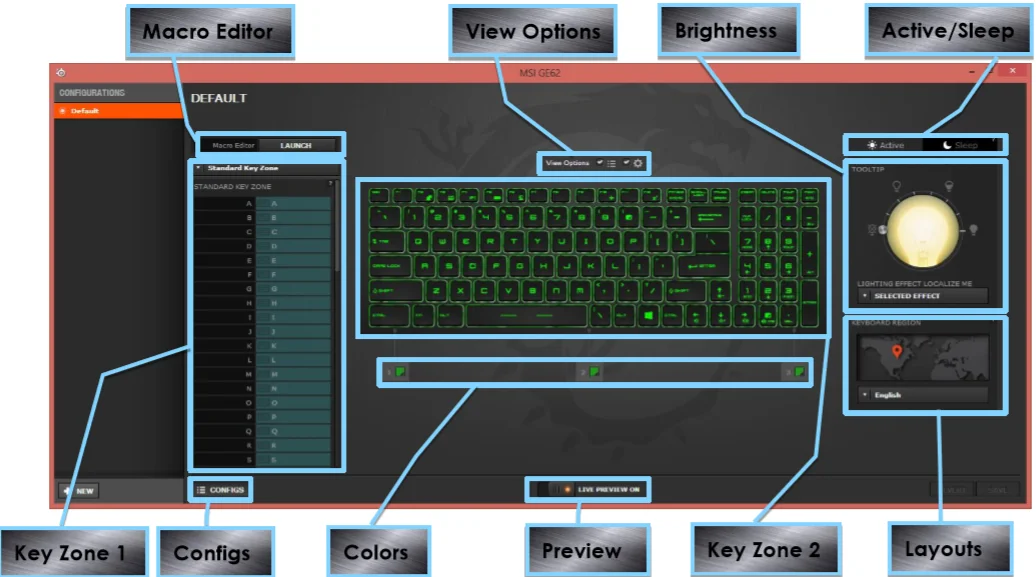
Macro:
Press Launch to edit the settings in Macro Editor.
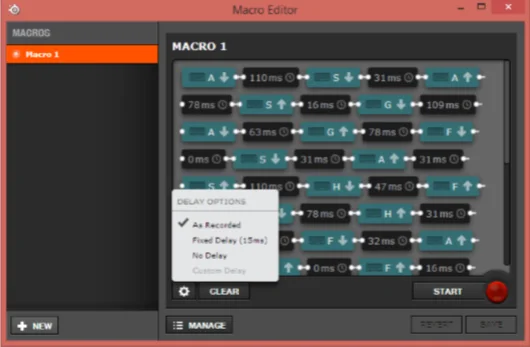
Recording Steps:
1. Click Start
2. Record Macro
3. Click Stop
4. Check Macro you just recorded before, click on the signal and delay time can edit them directly
5. Delay time can be adjusted into no delay or steady delay time
6. Click Manage to add or delete Macros.
View Options:
Check View Options to hide the list of Key zone 1, Brightness and Layouts
Brightness:
Click here to adjust the brightness of keyboard backlight. SSE3 now supports four phases of brightness. (Including no backlight )
Seven different backlight modes:
1. Illumination off
No backlight
2. Normal
Without special effects
3. Gaming Mode
Only light up left part of keyboard
4. Breathing Mode
Light up in a certain pattern repeatedly
5. Audio Mode
Light up with system sound effect, and volume needs to louder than 30%
6. Wave Mode
Three parts of backlight radiate cyclically
7. Dual Color Mode
Choose two colors and repeat persistently
P.S. Alpha4 version does not support backlight adjustment, the adjustment will be controlled by hotkeys
Active/Sleep:
Users can edit the backlight models when activate and in sleep mode
Sleep mode support Illumination Off/Breathing Mode/Wave Mode/Dual Color only
Key Zone 1/2:
Click Key Zone 1 or 2 can call keyboard Editor:
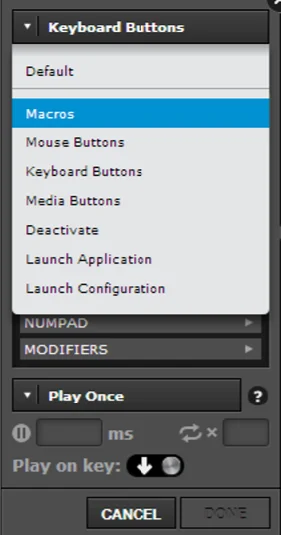
User can define any key (Except Fn) for the functions below:
0. Default
Original keyboard function
1. Macros
Call macros that users edited directly
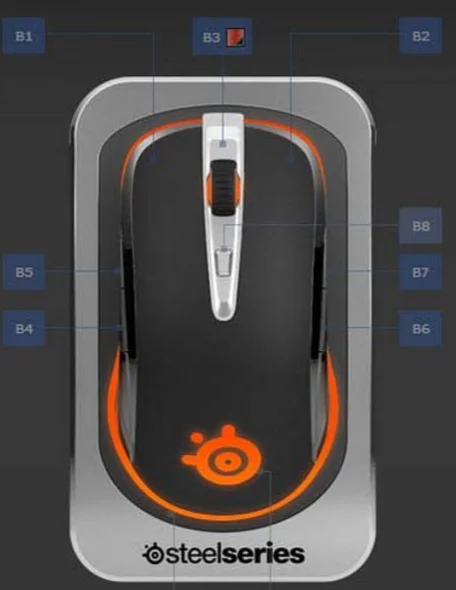
2. Mouse Buttons
Mouse function simulator
There are Buttons 1~8 and Scroll up and down options. Buttons 1~8 represent the same as Microsoft Window defined. (See figure below).
3. Keyboard Buttons
Keyboard buttons simulator
4. Media Buttons
Media buttons simulator
5. Deactivate
Deactivate keyboard
6. Launch Application
Launch applications effortlessly
7. Launch Configuration
Switch Configuration quickly
Besides, point 1, 2 and 3 support looping function
Definitions of looping function
A. Play once
Every press can send signal once only
Delay time is not adjustable
Times of signal output is not adjustble
Signals can be triggered by pressing or releasing
B. Play N times
Pressing the key once can send signal N times
Delay time between signals can be adjusted
Times of signal output is adjustble
Signals can be triggered by pressing or releasing
C. Repeat While Pressed
Hold the key pressing can send signals reaeatedly
Delay time between signals can be adjusted
Times of signal output is not adjustble
Signals can be triggered by pressing or releasing
Signals cannot be triggered by pressing or releasing
D. Toggle Auto Repeat
Send signals repeatedly after pressed the button. Press again to stop sending signals.
Delay time between signals can be adjusted
Times of signal output is not adjustble
Signals can be triggered by pressing or releasing
E. Toggle Hold
Send signals repeatedly after pressed the button. Press any key to stop sending signals.
Delay time between signals cannot be adjusted
Times of signal output is not adjustble
Signals can be triggered by pressing or releasing
Configs:
Press Configs buttons can call the edit page, which is able to add/delete Configs and each of them can match with different keyboard macros and backlight settings.
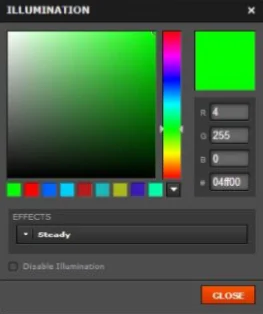
Colors:
(GT 80 does not support this function)
SSE support RGB color edit. Press any column to call color editor. Users can key-in color code or choose the color directly.
Preview:
Preview backlight after edited
Layouts:
Choose different keyboard Layouts
That’s the brief introduction for SSE3. If there’s any question or feedback, please leave us message under this thread. Thanks for your reading.
The latest version of Steel Series Engine 3 supports GT80/GE62 models. With superior gaming performance and intuitive interface can make your user experience more flexible. It is also the gear can back up all the files on the cloud and keep your software and hardware updated. We suggest users uninstall Keyboard LED Manager (KLM) before download SSE3. If you are Free-dos User can download SSE3 directly with the following link:
GE62:
http://www.msi.com/support/nb/GE62-2QF-Apache-Pro.html#down-utility&Win8.1 64
GT80:
http://www.msi.com/support/nb/GT80-2QE-Titan-SLI.html#down-utility&Win8.1 64
SSE3.0 Window – My Gear
Device Name:
Read information from EC and distinguish the model.
This place will also show other SteelSeries devices which support SSE3.
Update:
Press Update will check if this is the newest version.
Setting:
User can change language from here. The System default will follow Windows system directly.
Click “About” will show current versions of software and firmware.
Cloud:
Log-in the SSE cloud system, in order to edit all of the SSE files.
SSE3.0 Window – Library
Click “Library” to choose different SSE Devices and configurations, in order to meet the needs of users.
Keyboard Window
Macro:
Press Launch to edit the settings in Macro Editor.
Recording Steps:
1. Click Start
2. Record Macro
3. Click Stop
4. Check Macro you just recorded before, click on the signal and delay time can edit them directly
5. Delay time can be adjusted into no delay or steady delay time
6. Click Manage to add or delete Macros.
View Options:
Check View Options to hide the list of Key zone 1, Brightness and Layouts
Brightness:
Click here to adjust the brightness of keyboard backlight. SSE3 now supports four phases of brightness. (Including no backlight )
Seven different backlight modes:
1. Illumination off
No backlight
2. Normal
Without special effects
3. Gaming Mode
Only light up left part of keyboard
4. Breathing Mode
Light up in a certain pattern repeatedly
5. Audio Mode
Light up with system sound effect, and volume needs to louder than 30%
6. Wave Mode
Three parts of backlight radiate cyclically
7. Dual Color Mode
Choose two colors and repeat persistently
P.S. Alpha4 version does not support backlight adjustment, the adjustment will be controlled by hotkeys
Active/Sleep:
Users can edit the backlight models when activate and in sleep mode
Sleep mode support Illumination Off/Breathing Mode/Wave Mode/Dual Color only
Key Zone 1/2:
Click Key Zone 1 or 2 can call keyboard Editor:
User can define any key (Except Fn) for the functions below:
0. Default
Original keyboard function
1. Macros
Call macros that users edited directly
2. Mouse Buttons
Mouse function simulator
There are Buttons 1~8 and Scroll up and down options. Buttons 1~8 represent the same as Microsoft Window defined. (See figure below).
3. Keyboard Buttons
Keyboard buttons simulator
4. Media Buttons
Media buttons simulator
5. Deactivate
Deactivate keyboard
6. Launch Application
Launch applications effortlessly
7. Launch Configuration
Switch Configuration quickly
Besides, point 1, 2 and 3 support looping function
Definitions of looping function
A. Play once
Every press can send signal once only
Delay time is not adjustable
Times of signal output is not adjustble
Signals can be triggered by pressing or releasing
B. Play N times
Pressing the key once can send signal N times
Delay time between signals can be adjusted
Times of signal output is adjustble
Signals can be triggered by pressing or releasing
C. Repeat While Pressed
Hold the key pressing can send signals reaeatedly
Delay time between signals can be adjusted
Times of signal output is not adjustble
Signals can be triggered by pressing or releasing
Signals cannot be triggered by pressing or releasing
D. Toggle Auto Repeat
Send signals repeatedly after pressed the button. Press again to stop sending signals.
Delay time between signals can be adjusted
Times of signal output is not adjustble
Signals can be triggered by pressing or releasing
E. Toggle Hold
Send signals repeatedly after pressed the button. Press any key to stop sending signals.
Delay time between signals cannot be adjusted
Times of signal output is not adjustble
Signals can be triggered by pressing or releasing
Configs:
Press Configs buttons can call the edit page, which is able to add/delete Configs and each of them can match with different keyboard macros and backlight settings.
Colors:
(GT 80 does not support this function)
SSE support RGB color edit. Press any column to call color editor. Users can key-in color code or choose the color directly.
Preview:
Preview backlight after edited
Layouts:
Choose different keyboard Layouts
That’s the brief introduction for SSE3. If there’s any question or feedback, please leave us message under this thread. Thanks for your reading.