Network speed limited

Associate
Joined
15 Feb 2026
Posts
5
Location
enfield
My son has an Msi 370z gaming plus board which has Intel® I219-V Gigabit LAN controller.

We have a 1g broadband service but he can’t anything much over 10mbit download. I tried my laptop on the same line and got over 100, so it’s not the connectivity. We have updated the boards bios to the latest version, tried old and new network drivers but nothing helps.

Intel software that came with the drivers has some diagnostic feature and it says the interrupt status failed.

I have also tried a 1g usb network adapter but speed is also limited on this.

Any ideas what the issue is?

Thanks.

 
Describe how the PC is connected to the router, list every item in the path e.g. cable, wall plate, cable in the wall, wall plate, cable, switch, cable, broadband router (which model?)
 
It’s virgin media 1giga service. The pc is hard wired direct to the broadband router. I don’t know what model it is, it was only installed yesterday so assume latest model?for info, the issue was there before - we had hoped faster service would resolve it.
 
Go to Microsoft Copilot and paste in "what is interrupt status in networking?"

You will then see:

Some NIC utilities (like Intel PROSet) run an “Interrupt Status” test to verify that the NIC can generate and handle interrupts correctly. If this test fails, it may indicate a driver, firmware, or hardware issue.

and a link to this Intel community post:


and this post:


This is not quite your issue, but yours is probably along similar lines.

So, I would suggest making your own post in the Intel forum. You probably have some sort of communication problem from the NIC.
 
It’s virgin media 1giga service. The pc is hard wired direct to the broadband router. I don’t know what model it is, it was only installed yesterday so assume latest model?for info, the issue was there before - we had hoped faster service would resolve it.

If you use virgin medias speedtest it will detect the router and give you speed test results for the line as well as the connection to the PC:


You said "hardwired" is this just a long pre terminated patch cable or has someone run a cable and installed network sockets etc...

have a 1g broadband service but he can’t anything much over 10mbit download. I tried my laptop on the same line and got over 100, so it’s not the connectivity.
How much over 100Mb/s did you get with your laptop?

Cat5 is limited to 10/100
Cat5e or better is needed for 100->1000/2500


I'd update the firmware / driver as suggested by radderfire but also test with a new cat5e / cat6 cable if you have got one.
 
Go to Microsoft Copilot and paste in "what is interrupt status in networking?"

You will then see:

Some NIC utilities (like Intel PROSet) run an “Interrupt Status” test to verify that the NIC can generate and handle interrupts correctly. If this test fails, it may indicate a driver, firmware, or hardware issue.

and a link to this Intel community post:


and this post:


This is not quite your issue, but yours is probably along similar lines.

So, I would suggest making your own post in the Intel forum. You probably have some sort of communication problem from the NIC.
Thanks, will do some digging around that
 
I suspect your using an old CAT5 cable limiting speeds.

Had this a lot in work when people moved from Coper to FTTP services. Cable looked same so didnt see point in changing cables
 
I wonder if he will keep us updated ...

Its half term so they might have gone away or he might just be working there's still time for him to come back...

There are too many variables to be sure what the problem is 10mb download does sound like a bad cable to me despite his interupt failed error; he also needs to run the VM speed test I posted because lots of people have problems with speed drops on their old docsis cabling assuming it isn't the rare VM FTTP.

The USB network dongle he tried could be a cable fault, a fault with the VM line, using it in a pre USB3 socket or it might just not be very good..

He was also very vague when he said he got over 100Mb with his laptop and didn't answer my questions about the cables he was using.
 
Hello thanks for your replies and apologies for not responding sooner.

Cables used are cat 6 from router to pc, direct no junctions.

As said above when I did test on laptop it was with same cabling, so issue points to pc.

Ookla speed test gives well over 500mbs.

I have been trying to get secure boot working on the pc hoping that Windows resource management will resolve the interrupt failure issue but I get a black screen when I enable it. System is set to uefi and system drive is gpt which I believe are the requirements for secure boot but still won’t boot up.

My next plan was to start disconnecting devices in the pc and see it that helps.
 
Ookla speed test gives well over 500mbs.
That rules out using cat5 or a damaged cable but it would have been quicker if you had said that from the start not just "got over 100"

It still seems slow though if you are on a 1Gb connection what does "well over" mean 560 / 600 / 700 / 900 you are only giving half answers.

If I was paying for 1Gb and only getting 500-600 I wouldn't be happy the link I gave to VM is Sam knows (Cisco Real speed) embedded on their page and it gives two speed results one for the speed between the test server and the VM router and another for between the test server and the computer which in these situations make it a better test.


Back to his PC

Auto negotiation doesn't always work, power management settings can reduce the speed or his network port could be damaged what does the network properties say the LAN port is connected at does it say 1000/1000 or something else?

When you tried the USB dongle which USB port did you use?

Have you updated the LAN firmware / driver as suggested by radderfire?


I can't see how enabling secure boot would stop an interrupt error but theres a third party util called WhyNotW11 that will tell you if anything is amiss

I'd check drive status with crystal disk info and then probably run a RAM test as well but if you have bad ram I'd expect it to have been crashing.


Edit: Overclockers also has a PCIe 1Gb LAN adapter on pre order for £10 obviously we can't link to any where else
 
Last edited:
That rules out using cat5 or a damaged cable but it would have been quicker if you had said that from the start not just "got over 100"

It still seems slow though if you are on a 1Gb connection what does "well over" mean 560 / 600 / 700 / 900 you are only giving half answers.

If I was paying for 1Gb and only getting 500-600 I wouldn't be happy the link I gave to VM is Sam knows (Cisco Real speed) embedded on their page and it gives two speed results one for the speed between the test server and the VM router and another for between the test server and the computer which in these situations make it a better test.


Back to his PC

Auto negotiation doesn't always work, power management settings can reduce the speed or his network port could be damaged what does the network properties say the LAN port is connected at does it say 1000/1000 or something else?

When you tried the USB dongle which USB port did you use?

Have you updated the LAN firmware / driver as suggested by radderfire?


I can't see how enabling secure boot would stop an interrupt error but theres a third party util called WhyNotW11 that will tell you if anything is amiss

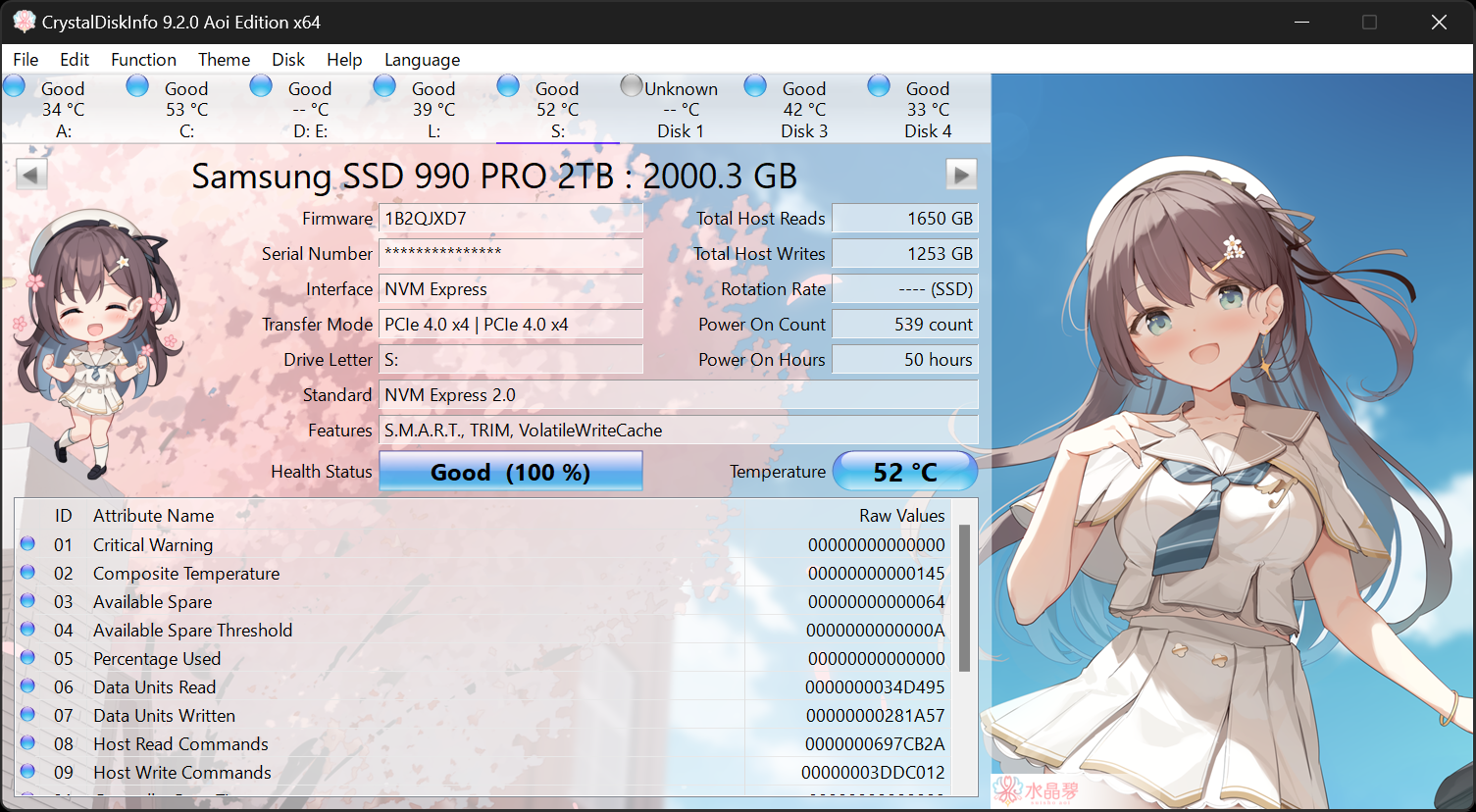
I'd check drive status with crystal disk info and then probably run a RAM test as well but if you have bad ram I'd expect it to have been crashing.


Edit: Overclockers also has a PCIe 1Gb LAN adapter on pre order for £10 obviously we can't link to any where else
Thanks a lot of useful info there
 
Back
Top Bottom